
Once you have completed training, complete the activity at the bottom of this page and submit the form.
HOW TO USE CALLTOOLS
Login to Calltools
Set Up for Dialling
● Click the Campaigns & Queues tab.
● Ensure your status (top left) is set to Available.
● For any breaks, mark your status as Break.
Starting the Dialling Process
● Click the Join Campaign button and select the Inbound Calls Queue.
● Confirm the top right status reads Ready and does not display Out of Leads.
● If it says Out of Leads, inform the team that a new list is needed.
● Dialling will automatically start and continue until connected with a live person.
On a Connected Call
● Follow the provided script located in the Agent Script tab.
● Use the Notes tab to document details about the call.
After the Call
● Once the call ends, a red screen will appear at the top.
● Select the appropriate call disposition and click Submit.
● Continue with dialing by following the steps above.
Additional Notes
● Do not click the "Next & Call" button; this is used for manual campaign calling.
● Ensure Campaign Ready is checked on the top right of your dashboard to confirm the campaign is actively dialling leads.
Booking Appointments
● For any appointment set, add it to the client’s calendar and complete the following form: Appointment Form.
Ending Your Session
● When finished, click the Exit Dialling button and set your status to Not Available.
● Then, Exit Campaign and Exit Queue to fully log out.
HOW TO GET FEEDBACK
TONALITY
THE 3 TYPES OF APPTS
CLOCKING IN AND OUT
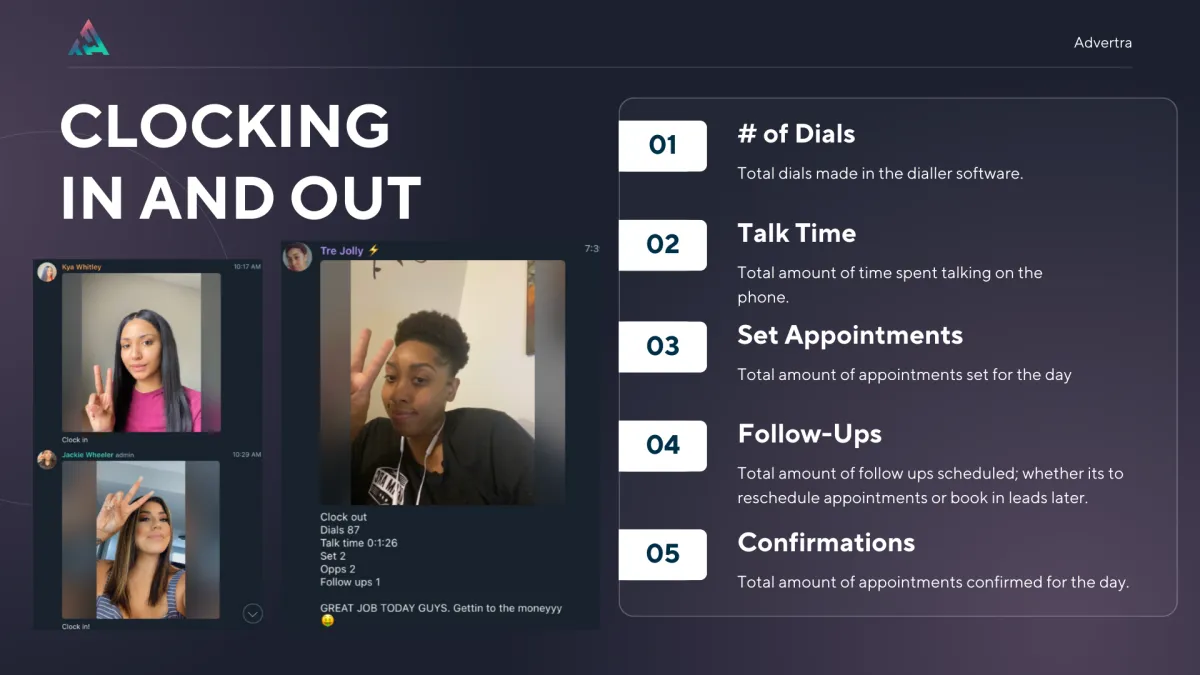
To find your stats for the day when clocking out, head over to the Leaderboard tab on top in CallTools.
Key Times:
2:55 — Another company did XYZ so I'm not interested.
4:27 — This is a government funded program (rebuttal)
5:38 — No commitment to sign up right away (rebuttal)
8:55 — Are they going to credit check me?